
Configuring your Printer and Scanner services might appear intimidating, but by following the correct steps, it can be an easy and uncomplicated task. Whether you’re new or trying to resolve setup problems, this guide will lead you through each step for effortless installation.
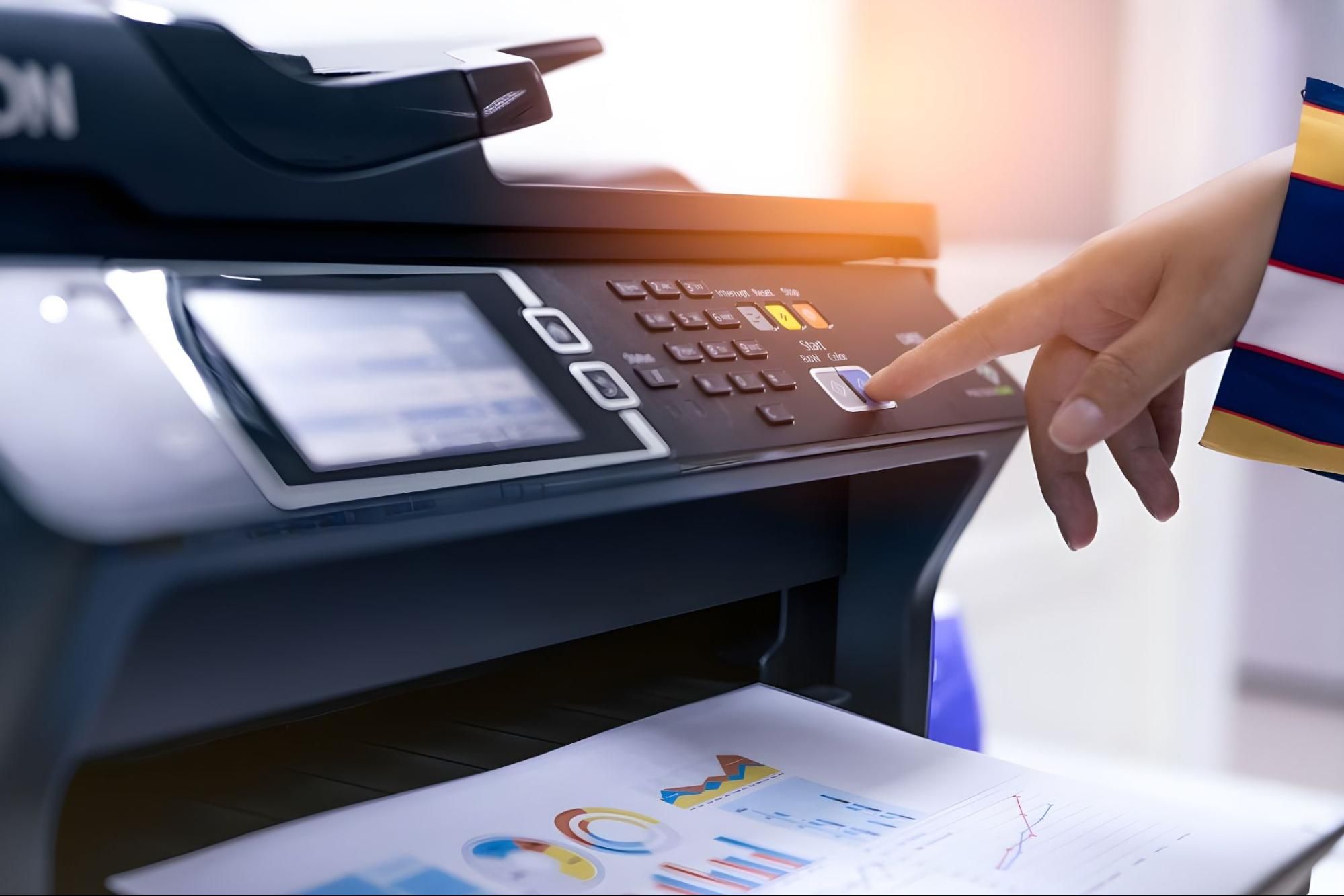
Why Proper Printer and Scanner services Setup Matters
Making sure your printer and scanner are properly configured not only saves time but also guarantees effective operation. Proper installation reduces paper jams, connectivity problems, and printing mistakes.
Step 1: Unbox and Prepare Your Device
Unpack Carefully: Take off all protective tapes, plastic coverings, and packaging items.
Inspect Components: Verify the existence of power cables, ink cartridges, and a USB cable (if provided).
Place Your Equipment: Set your printer/scanner on a sturdy surface with good airflow to avoid overheating.
Step 2: Connect to Power and Turn On
- Insert the power cord into an electrical socket.
- Press the power switch to activate the device.
- If your printer features a display panel, adhere to the prompts displayed on the screen.
Step 3: Install Ink Cartridges and Load Paper
Install Ink or Toner: Open the cartridge section and firmly place the cartridges inside.
Insert Paper: Position the paper in the input tray, ensuring proper alignment to prevent paper jams.
Step 4: Connect the Printer and Scanner services to Your Computer
Wireless Connection:
- On the printer display, navigate to Wi-Fi settings.
- Select your network and enter the password.
Wired Connection:
Connect the printer or scanner to your computer via a USB cable.
Step 5: Install Printer and Scanner Drivers
- Visit the manufacturer’s official website.
- Download the latest driver compatible with your operating system.
- Run the installation file and follow the on-screen instructions.
Step 6: Configure Printer and Scanner Settings
- Access the ‘Devices and Printers’ section in your computer’s control panel.
- Set your new printer as the default device.
- For scanners, configure scanning preferences through scanning software.
Step 7: Test Printing and Scanning
- Print a test page to ensure everything is functioning correctly.
- Scan a document to check the scanner’s output quality.
Troubleshooting Common Issues
1. Printer Offline Error:
- Ensure the device is powered on.
- Restart the printer and router for wireless connections.
- Verify the correct printer is selected as default.
2. Paper Jams:
- Remove any stuck paper carefully.
- Align paper correctly in the input tray to avoid future jams.
3. Low-Quality Prints:
- Clean the print heads using the maintenance tool.
- Replace empty cartridges or toners.
Best Practices for Printer and Scanner Maintenance
- Regularly update your printer and scanner drivers.
- Clean the scanner glass and printer heads for optimal performance.
- Store your device in a dust-free environment.
- Use recommended ink and paper for best results.
By adhering to this detailed guide, you can effortlessly configure your printerscanner for optimal performance. Correct installation and upkeep guarantee enduring device performance and enhanced print quality. If you face difficulties, consulting this guide will assist in quickly addressing most typical issues.
For in-depth troubleshooting or expert assistance, go to your manufacturer’s official website for instructions. Wishing you joyful printing and scanning.
