
Setting up a new Windows computer can be exciting—but also a bit overwhelming if you’re not sure where to start. Whether you’ve just bought a new laptop, built a custom PC, or upgraded from an older version of Windows, this guide will walk you through everything you need for a perfect Windows computer setup — from unboxing to optimization.
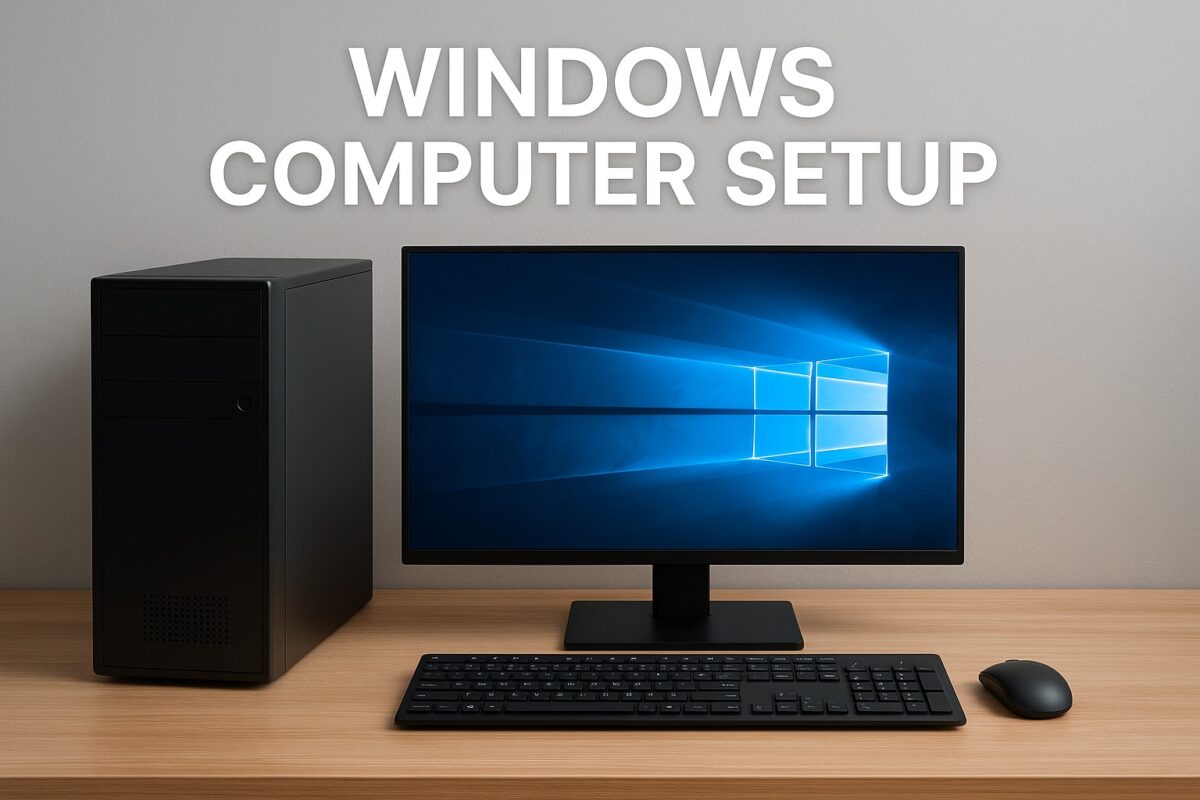
1. Unbox and Prepare Your Computer
Before turning your computer on, check that all accessories are included. You should have:
- The computer tower or laptop
- Power cables and adapter
- Keyboard and mouse
- Monitor or display cable (HDMI, VGA, or DisplayPort)
Once you’ve confirmed everything’s in place, connect your computer to a power outlet and your display. If you’re using a desktop PC, make sure the monitor cable and power cord are securely attached.
2. Power On and Begin Windows Setup
Press the power button to start your Windows computer setup. Within seconds, the Windows installation wizard will appear on your screen.
Follow these steps:
- Choose your region and language – Select your country, language, and keyboard layout.
- Connect to Wi-Fi – A stable internet connection allows Windows to activate and install updates automatically.
- Sign in with a Microsoft account – This lets you sync settings, files, and OneDrive storage across devices.
- Set a PIN or password – Secure your computer immediately to protect personal data.
If you prefer to use your computer without a Microsoft account, select “Offline Account” or “Local Account” during setup.
3. Install Windows Updates
Once your computer is ready, it’s time to ensure it’s running the latest version of Windows. Updated software means fewer bugs, better performance, and stronger security.
Go to:
Settings → Windows Update → Check for updates
Allow the updates to download and install completely. You might need to restart your PC several times during this process.
4. Install Essential Drivers
Drivers help your operating system communicate with hardware like printers, graphics cards, and network adapters. Missing or outdated drivers can cause lag, glitches, or device errors.
Check the Device Manager to ensure all devices are recognized:
- Right-click on the Start menu → Device Manager
- Look for yellow exclamation marks indicating missing drivers
- Download the latest drivers from your computer manufacturer’s website (e.g., Dell, HP, Lenovo, ASUS, etc.)
5. Install Essential Software
Now it’s time to make your Windows computer useful. Here are the essential applications for every user:
- Web Browser: Google Chrome, Microsoft Edge, or Mozilla Firefox
- Office Suite: Microsoft Office 365 or LibreOffice
- Security: Windows Defender or trusted antivirus software (like Bitdefender or Avast)
- Media Players: VLC Media Player or Windows Media Player
- Communication Tools: Zoom, Skype, or Microsoft Teams
- Cloud Storage: OneDrive, Google Drive, or Dropbox
Having these tools installed helps you work, communicate, and entertain seamlessly.
6. Customize Windows Settings
One of the great things about Windows computer setup is how customizable it is. Tailor your experience to suit your preferences:
- Theme & Wallpaper: Go to Settings → Personalization → Background to set a new look.
- Taskbar & Start Menu: Pin frequently used apps for quick access.
- Privacy Settings: Choose which apps can access your camera, microphone, or location.
- Notifications: Adjust or mute notifications to minimize distractions.
Bonus Tip: Use Night Light mode to reduce eye strain during evening hours.
7. Set Up Backup and Recovery
Data loss can happen anytime due to hardware failure or accidental deletion. Setting up automatic backups ensures your files are always safe.
You can use:
- Windows Backup (File History): Settings → Update & Security → Backup
- Cloud Backup: OneDrive or Google Drive for automatic cloud syncing
- External Hard Drive: Copy important files regularly to an external drive
Also, create a System Restore Point so you can roll back to a working state if something goes wrong.
8. Optimize Performance
A few quick tweaks can make your new Windows setup faster and more efficient:
- Uninstall unnecessary apps – Go to Settings → Apps and remove what you don’t need.
- Disable startup programs – Use Task Manager → Startup tab to reduce boot time.
- Run Disk Cleanup – Delete temporary files and cache.
- Defragment your hard drive (for HDD users) or enable TRIM (for SSD users).
Regular maintenance ensures your Windows PC stays fast and responsive.
9. Strengthen Security
Windows comes with Windows Defender, which offers solid real-time protection. But you can improve security even further by:
- Enabling BitLocker (Windows Pro users) for full-disk encryption
- Turning on Firewall and SmartScreen
- Keeping software and browsers updated
- Using strong, unique passwords for all accounts
If you frequently browse or download files online, consider adding a premium antivirus tool for extra protection.
Final Thoughts
A proper Windows computer setup ensures your system runs fast, secure, and fully optimized from day one. By following these steps—installing updates, adding drivers, securing your files, and customizing your preferences—you’ll enjoy a smooth computing experience that lasts for years.
Whether you’re a beginner or a pro, taking the time to set up Windows the right way saves you frustration later. So, plug in, power up, and let Windows help you do more—efficiently and securely.
